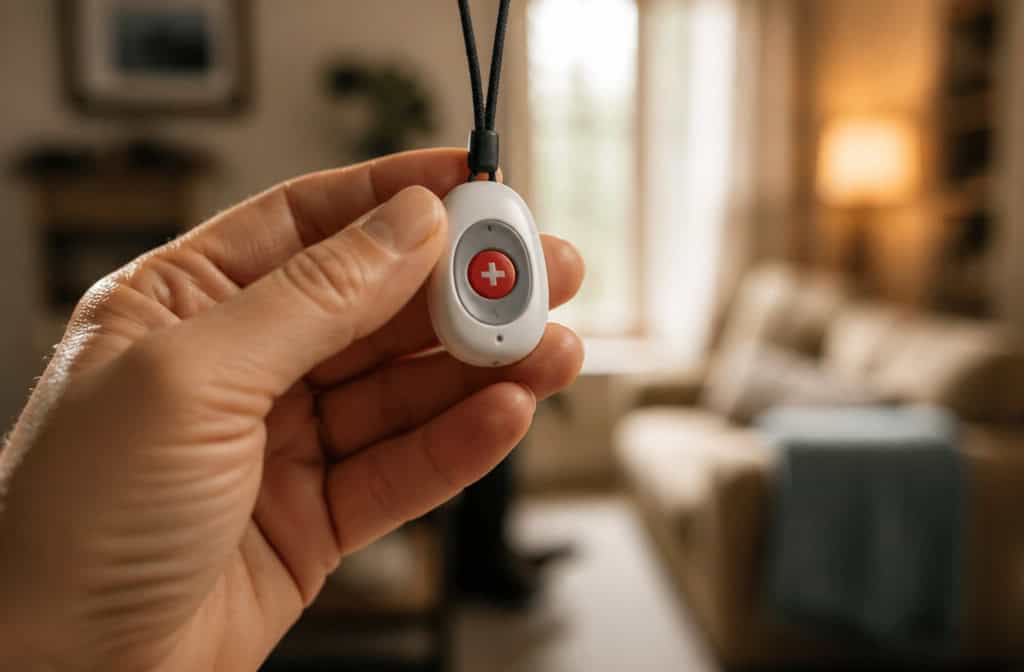
The panic hits when you reach for the pendant or check for the watch, and it’s not there. You check the nightstand. The bathroom counter.
The chair they always sit in. Nothing. And now every minute feels heavy, because the whole point of that device is that it’s supposed to be on them, ready to call for help.
I’ve been there. It’s common. Medical alert devices are small, they get taken off for showers and charging, and they end up in hiding spots.
There’s a method to this. It’s not just rummaging through couch cushions and hoping. The folks at Wirecutter spent over 100 hours testing 22 different systems, with input from three occupational therapists and a physician. From that testing, a few things became clear about where these devices go and how to get them back.
This guide walks through seven steps. Start at Step 1 and work your way down — many devices will be found by Step 3.
Key Takeaways
The Kanega Watch’s GPS failed 4 out of 10 times in Kansas City testing, so a companion app’s “last known location” is a starting point, not a guarantee.
A LifeFone pendant triggered a false alarm when it was taken off and placed on a table — that false alarm is actually a clue about where the device went.
Never press the help button on the wearable to find it, because it can call the monitoring center. Use the base unit’s alarm instead.
Table of Contents
Step 1: Check the App and GPS Locator First
The GPS on the Kanega Watch failed 4 out of 10 times during testing in Kansas City. That’s not a typo — the watch, which costs $299 to set up plus over $80 a month, couldn’t reliably report where it was. But when it was connected to Wi-Fi, the GPS was accurate.
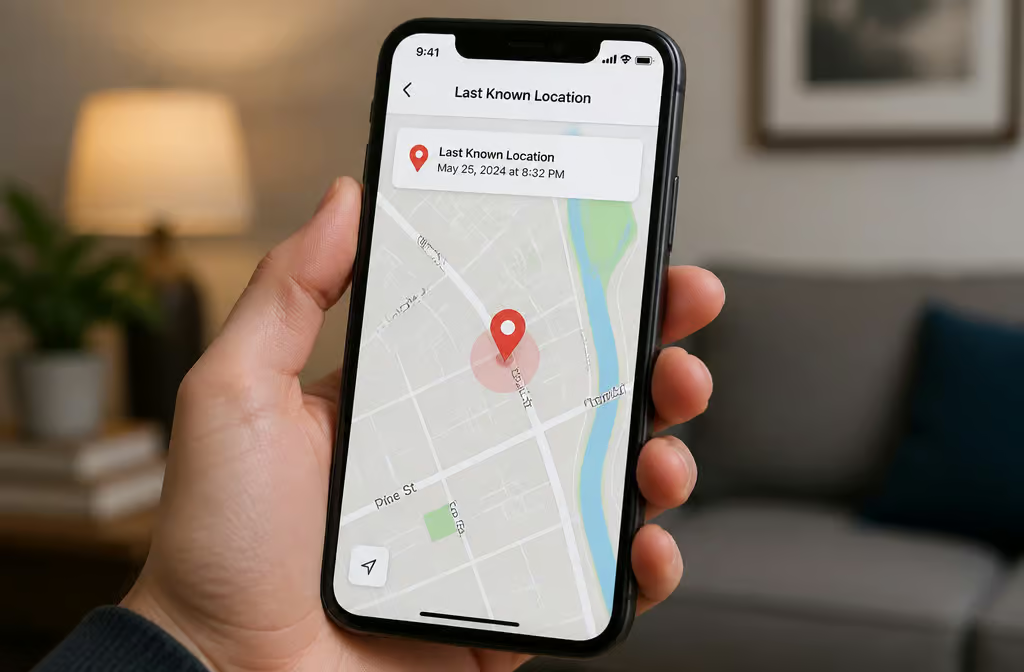
Open the companion app on your phone and look for “last known location” or something similar. If it shows a spot, that’s your starting point. If it shows nothing, or a location that looks wrong, move to Step 2. GPS on these devices is a clue, not a guarantee.
A few things to know before you start:
- Wi-Fi matters. If your device uses Wi-Fi to triangulate its position, moving closer to your router can help it reconnect and report a more accurate location. This works well if the device is somewhere in the house.
- Some devices are better than others at this. The LifeFone VIPx had strong location tracking in testing. The Bay Alarm Medical SOS GPS was not always exact. The LifeFone Safe Watch Active had better GPS than the Kanega Watch in some spots. GPS reliability varies across brands.
- Use the map as a starting point, not a guarantee. If the app says the device is in the living room but you’re pretty sure it hasn’t left the bedroom, trust your gut and move to Step 2.
Step 2: Retrace Steps and Check the Obvious Spots
Medical alert devices are almost never actually “lost.” They’re exactly where someone took them off. Understanding that distinction changes the search.
People don’t lose their device on a walk or at the grocery store. They take it off because it’s uncomfortable or they’re charging it, and then they get distracted. So instead of asking “where did it fall?”, ask “where did they take it off?”
Start with the classic spots:
- Nightstand
- Charging station
- Bathroom counter
- Shower caddy or soap dish
- Kitchen table
- The favorite chair (check the cushions and down the sides)
Then think about travel routes. If they went somewhere recently, check the purse, coat pocket, glove compartment, or wheelchair basket.
And here’s an effective move: just ask the person wearing it. “Where did you last have it on your body?” They often know, even if they didn’t realize they knew. Naming the room often unlocks the memory.
One clue from testing: the LifeFone pendant triggered a false alarm when it was taken off and placed on a table. If a false alarm went off recently, the device is probably wherever that person was when they took it off.
Red flag: If a false alarm went off recently, the device is likely sitting wherever the person took it off — not lost, just misplaced.
Step 3: Sound the Alarm (Safely) and Use Voice Activation
Pressing the help button on the wearable to find it can actually call emergency services. If you press the button on the pendant or watch, the device assumes you have an emergency. That’s what it’s designed to do. Don’t use the wearable’s button as a locator.
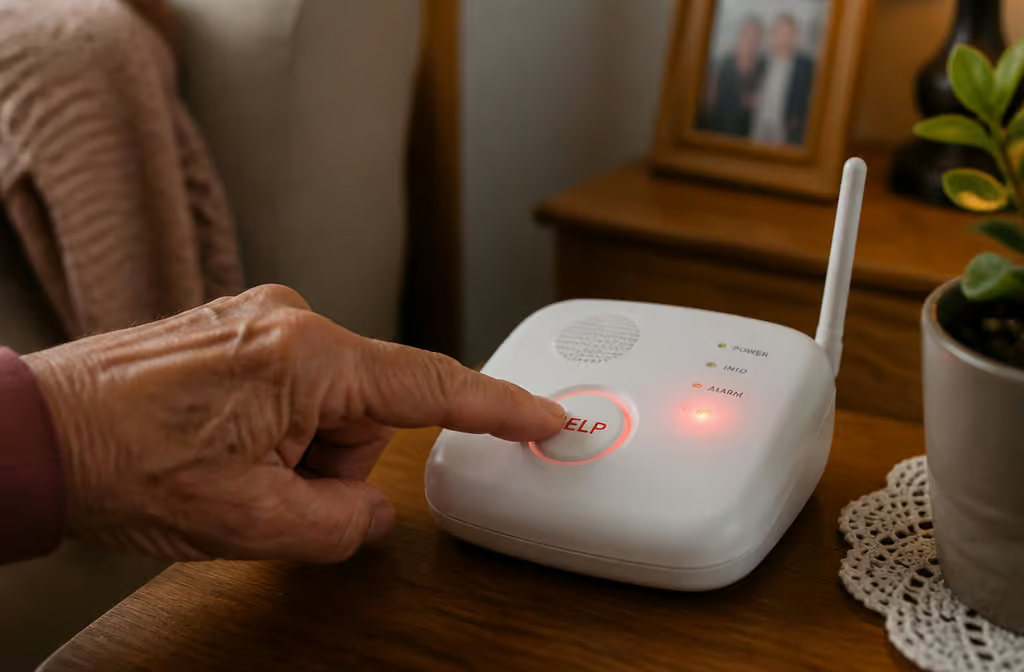
Instead, use the base unit’s help button. On the LifeFone At-Home Cellular, the base unit has a loud speaker that can be heard up to 1,300 feet away. It’s loud. Press the base button and listen for the pendant or wristband to respond.
Before you trigger any loud alarm, warn everyone in the house. A medical alert alarm is startling enough when you’re expecting it. Let the person wearing the device know what’s happening so they don’t think it’s a real emergency and try to get up quickly.
If the device has voice activation, that’s another option. The Kanega Watch responds to the wake words “Fred Astaire” followed by “Get help.” Alexa Emergency Assist responds to “Alexa, help” or “Alexa, I’ve fallen.” If the device is under a cushion or in a coat pocket, your voice might make it respond and reveal its location.
Voice activation isn’t perfect. The Kanega didn’t always recognize wake words in testing, so don’t assume silence means the device isn’t there. It might just be in a spot where it can’t hear you.
Step 4: Call the Monitoring Center and Check Caregiver Apps
The folks who answer when you press the button might know where your device is. The 24/7 monitoring center often has access to location data you can’t see on your end.
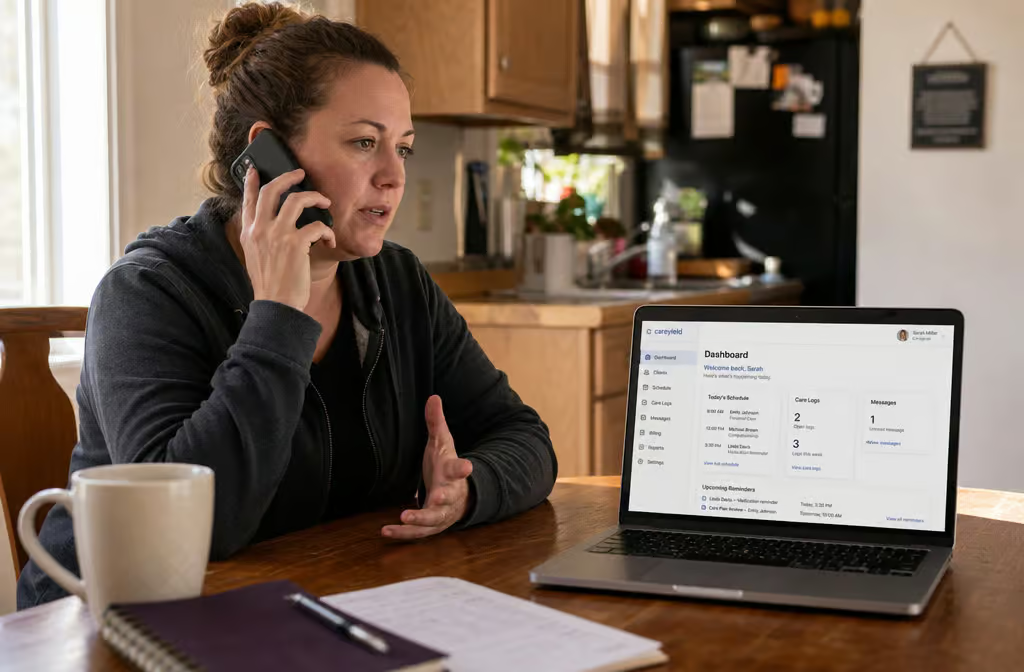
When you call, ask specifically for the device’s last known GPS location. Not every operator will volunteer this information. If the first person you talk to isn’t helpful, ask for a supervisor. Some caregivers have found that customer service is much more cooperative when they’re persistent, especially after learning more about how Do medical alert devices have GPS tracking works.
If you have a caregiver app, check it. The Bay Alarm Medical SOS All-In-One 2 has a caregiver app that shows the wearer’s location and battery level. Alexa Emergency Assist lets caregivers with Echo devices use the “drop in” feature to check on the senior — which is useful for calling out and listening for the device’s response.
Some companies can text or call a designated caregiver when the device is activated or the battery is low. If your system has that feature, you might already have a notification that tells you when the device last checked in, which is a common concern for unmonitored medical alert systems.
Step 5: Let False Alarms Point the Way
That false alarm was actually trying to help you.
Fall detection sensors are looking for sudden motion, and placing a device down on a hard surface looks a lot like a fall. The LifeFone pendant triggered a false alarm when it was set on a table. The Kanega Watch had more false alarms than other devices in testing, though they were easy to dismiss.
False alarms often happen in the exact spots where people remove devices — nightstand, bathroom counter, desk. If an alert went off at 3pm and you couldn’t find the device at 3:30, you’ve narrowed the search to wherever that person was at 3pm.
If false alarms are a constant problem, you can call customer service and ask them to recalibrate the fall-detection sensitivity. The companies that make these devices can tailor the settings to the wearer’s activity level. This reduces nuisance triggers without sacrificing fall detection.
Step 6: Search the Wet Zones
The device is probably in the shower, the soap dish, or a bathrobe pocket.
The bathroom is a common room for a device to come off. People remove pendants and watches to shower, and they don’t always remember to put them back on. The device ends up on the edge of the tub, in a shampoo caddy, or tangled in a towel, but for a guide on recovering these lost wearable medical alert devices, understanding their common hiding places is key.
Before you search the bathroom, check whether the device is water-resistant. The Kanega Watch is water-resistant and can be worn in the shower. LifeFone buttons are water-resistant too. That means these devices can be taken into the shower, so they might be there. Alexa Emergency Assist is not water-resistant, but it can hear over showering noises — a feature if the wearer is still wearing it in there.
Water-resistant doesn’t mean waterproof. Don’t submerge the device to “test” it. If it’s been in water for a while, dry it off carefully and don’t charge it until you’re sure it’s completely dry.
Step 7: Understand Power and Connectivity Limits
If the device is dead or the power is out, none of the tech tricks above will work.
Different systems handle power differently:
- Alexa Emergency Assist has no battery backup. If the power goes out, the whole system goes dark.
- ADT Medical Alert Plus has a backup battery that lasts up to 30 hours.
- The Kanega Watch has built-in backup battery.
- LifeFone uses AT&T cellular and doesn’t rely on Wi-Fi, so it may still work if your home internet goes down.
The Kanega Watch pulls from both Wi-Fi and Verizon cellular. During testing, Wi-Fi made the GPS accurate, but cellular alone failed. If the watch is in a dead zone, the app might not be able to find it even though the watch is working fine.
If the device is dead, you can’t ping it. But dead devices still have a physical location, and that location is usually a charging spot. The LifeFone Safe Watch Active and ADT On-The-Go both have to be removed to charge. Check the charger first, then work outward from there.
And one reality check for the long term: fall detection is never 100% accurate on any device. It’s a tool, but don’t treat it as a guarantee that the device will always know where it is and what’s happening.
Prevention and Planning for the Future
A $5 lanyard can save you from a $299 setup fee and days without coverage. That’s not a metaphor — that’s the actual math on the Kanega Watch.
The cheapest prevention is also the simplest: get a lanyard, clip, or wristband that’s hard to remove. If the device can’t easily come off, it can’t easily get lost.
Beyond that, a few habits help:
- Charge the device in one consistent place every time. Pick a spot and stick to it. When the device disappears, you’ll know where to look first.
- Set a daily reminder to check the app. A quick glance at battery level and location takes 30 seconds and prevents the “it’s been dead for two days” discovery.
- Consider whether the device fits the person’s routine. If they take it off for showers, they need a water-resistant device they can wear in there. If they take it off to charge, they need a charging routine that’s impossible to forget.
Replacement costs are worth understanding before you need to pay them:
- Kanega Watch: $299 setup fee, about $65/month on an annual plan
- LifeFone: No setup fee
- Life Alert: $247 activation fee plus $90/month with a 36-month contract
You can use FSA or HSA funds for these systems. Veterans can get a system through the VA at no out-of-pocket cost. Before you buy a replacement, call the company — many require you to return the old equipment to cancel, and the customer service team may have other options for you.
Some companies have baggage. Medical Guardian has had privacy breaches. Alert1 uses aggressive sales tactics. If you’re choosing a new system, research beyond just the sticker price.
Conclusion: Your Device-Specific Recovery Toolkit
Which device you own determines how you’ll find it. Here’s your cheat sheet.
UnaliWear Kanega Watch: Voice command is your best bet — say “Fred Astaire” then “Get help” and listen. Check the companion app while near Wi-Fi, since cellular alone wasn’t reliable in testing. $299 setup, about $65/month on annual plan.
Alexa Emergency Assist: Say “Alexa, help” and listen for the response. Fastest response time in testing (14.6 seconds, though the watch had better call quality). $59/year for Prime members. No fall detection and no battery backup, so check the power situation first.
LifeFone At-Home Cellular: Press the base unit’s help button to trigger the pendant’s speaker. The base alarm can be heard up to 1,300 feet. Uses AT&T cellular, so it works without home internet. No setup fee, $31–35/month, fall detection add-on $5.
LifeFone Safe Watch Active: Budget smartwatch on AT&T. Better GPS than the Kanega in some spots, but must be removed to charge — check the charging station first. Companion app is your recovery tool.
ADT On-The-Go: Mobile base with a pendant. Must be charged daily, so the charger is the first place to look. Companion app for GPS. Fall detection available as an add-on.
Bay Alarm Medical SOS All-In-One 2: 72-hour battery life, caregiver app with location and battery level. GPS wasn’t always exact in testing, so use the app as a starting point. Call the monitoring center if the app doesn’t help.
LifeFone VIPx: Strong GPS tracking and response times nearly always under 30 seconds. The companion app’s GPS feature is useful here.
LifeStation Sidekick Smart: Similar to the Safe Watch Active but with a higher price and an activation fee. Companion app and charging station are your first stops.
If your device isn’t listed, generalize: base-station systems respond best to Step 3 (trigger the base’s alarm), GPS watches respond best to Step 1 (check the app), and anything that has to be taken off to charge is probably sitting on its charger.
These findings came from 22 systems tested over 100 hours, with input from occupational therapists and a physician. No single device is perfect — the Kanega has GPS issues, the LifeFone has loud alarms, the Alexa system loses power in an outage. But knowing your device’s quirks is exactly what will help you find it faster when it goes missing.
And if you’re standing in your living room right now, device in hand, breathing a sigh of relief — the lanyard tip is the one that keeps working. Trust me on that one.
Frequently Asked Questions
How to get a medical alert device for free?
Veterans can get a system through the VA at no out-of-pocket cost. You can also use FSA or HSA funds to cover the cost of a medical alert system. Before buying a replacement, call the company — they may have other options or require you to return old equipment to cancel.
Do medical alert devices have GPS?
Many do, but reliability varies significantly between brands and models. Some devices like the LifeFone VIPx have strong GPS tracking, while others like the Kanega Watch failed GPS tests 4 out of 10 times in real-world testing. Wi-Fi connectivity often improves GPS accuracy, so a device in a dead zone may not report its location correctly.