Your child lights up the second the laptop opens, and half of you wants to cheer while the other half wonders if you’re accidentally handing your homeschool over to a screen. That split feeling is exhausting when you started out picturing living books, nature walks, and kitchen-table lessons.
I used to be firmly anti-screen when it came to homeschooling. I wanted our days built around real books, hands-on skills, and time together without a glowing rectangle competing for attention.
Over time, I landed in a steadier middle ground. My son loves computers, and with the AI revolution underway, I’m happy to let him learn and explore while I keep an eye on what he views. Tech doesn’t have to take hours out of your day or turn into a crutch, as long as you have a simple filter for what gets a yes, a realistic weekly rhythm, and clear guardrails as your kids grow.
Key Takeaways
Five of eight posters who shared what their kids use for schoolwork picked a Chromebook, and three use a laptop. That lines up with three of four homeschool guides, which favor laptops over desktops because they’re easier to supervise.
Every tech tool in a balanced homeschool needs to pass two practical tests: it has to be low-stimulating and simply supplemental, never a replacement for books or shared learning.
A small, predictable weekly screen routine works best: one short Keyboarding Without Tears typing lesson a week, one 5 to 20 minute Math-U-See video, and self-paced Hoffman Academy piano lessons that kids can run on their own after the first few sessions.
Table of contents
Table of Contents
The two-criteria filter: low-stimulating and supplemental
Every screen resource you bring in has to be low-stimulating and strictly supplemental. A homeschooling parent at Treehouse Schoolhouse uses that rule of thumb so tech never replaces books or shared learning. It also helps you spot “educational” sites that are secretly built like arcade games.
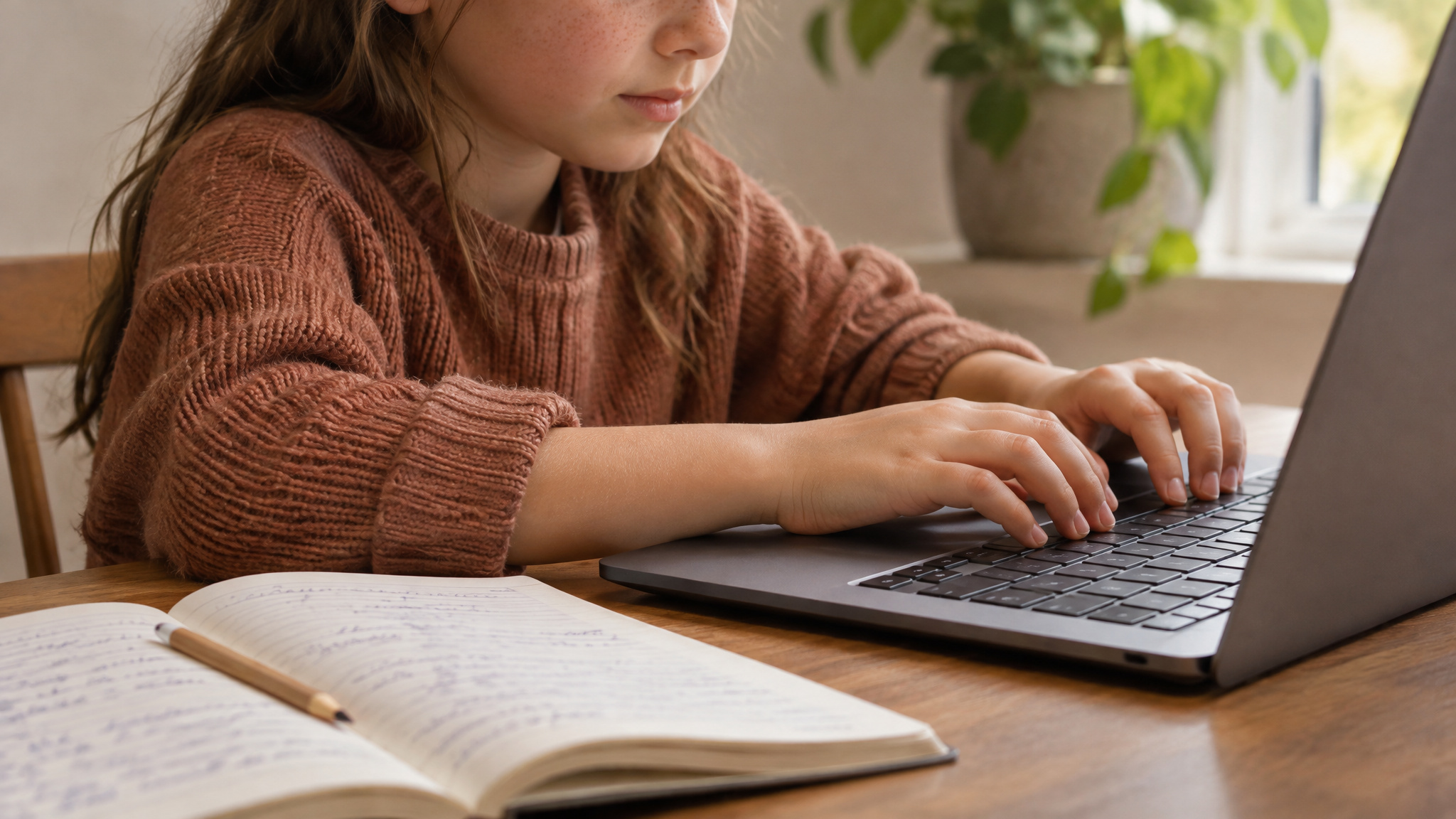
Low-stimulating usually means audio-only so kids can crochet, do puzzles, or draw while they listen. When a resource does have visuals, it needs to skip layered sound effects, neon colors, and fast-moving animations. Too many websites calling themselves educational are packed with bright colors, constant noise, and flashy rewards that keep a child glued to the screen while very little sticks.
You don’t even need a computer to give your child a solid education. Hands-on projects and print curriculum cover everything if you have the time to sit side by side on the couch with nothing louder than pencil on paper.
That split shows up in what families actually do, too. Two of the four homeschool guides we checked say you need a computer to homeschool, and two say you do not. Among 16 posters who reported how often they use computers in their homeschool lessons, seven say all the time, seven say some of the time, and two say not at all. Families succeed all across that spectrum depending on their schedule and how they teach, which means you can use tech intentionally without letting it run the whole day.
Keyboarding Without Tears: one short lesson a week
Keyboarding Without Tears is a strong fit for elementary kids who need steady typing practice without daily screen battles. Running one short lesson a week over a couple of years is enough to build real confidence on the keyboard without crowding out handwriting.
What makes it fit smoothly into a homeschool week is that the typing lessons weave in history, science, and other school subjects instead of feeling like empty drills. Once kids get comfortable finding the keys, typing stops being a separate chore and carries straight into everyday work like typing narrations, Mail Monday letters to family, and creative writing.
Hoffman Academy piano lessons that become independent
Kids can learn piano online with Hoffman Academy, and it works especially well if you want a music program that eventually runs without you hovering nearby. It’s a self-paced program built on early child development and learning theory, and it avoids the frantic, over-stimulating bells and whistles of many kid apps.
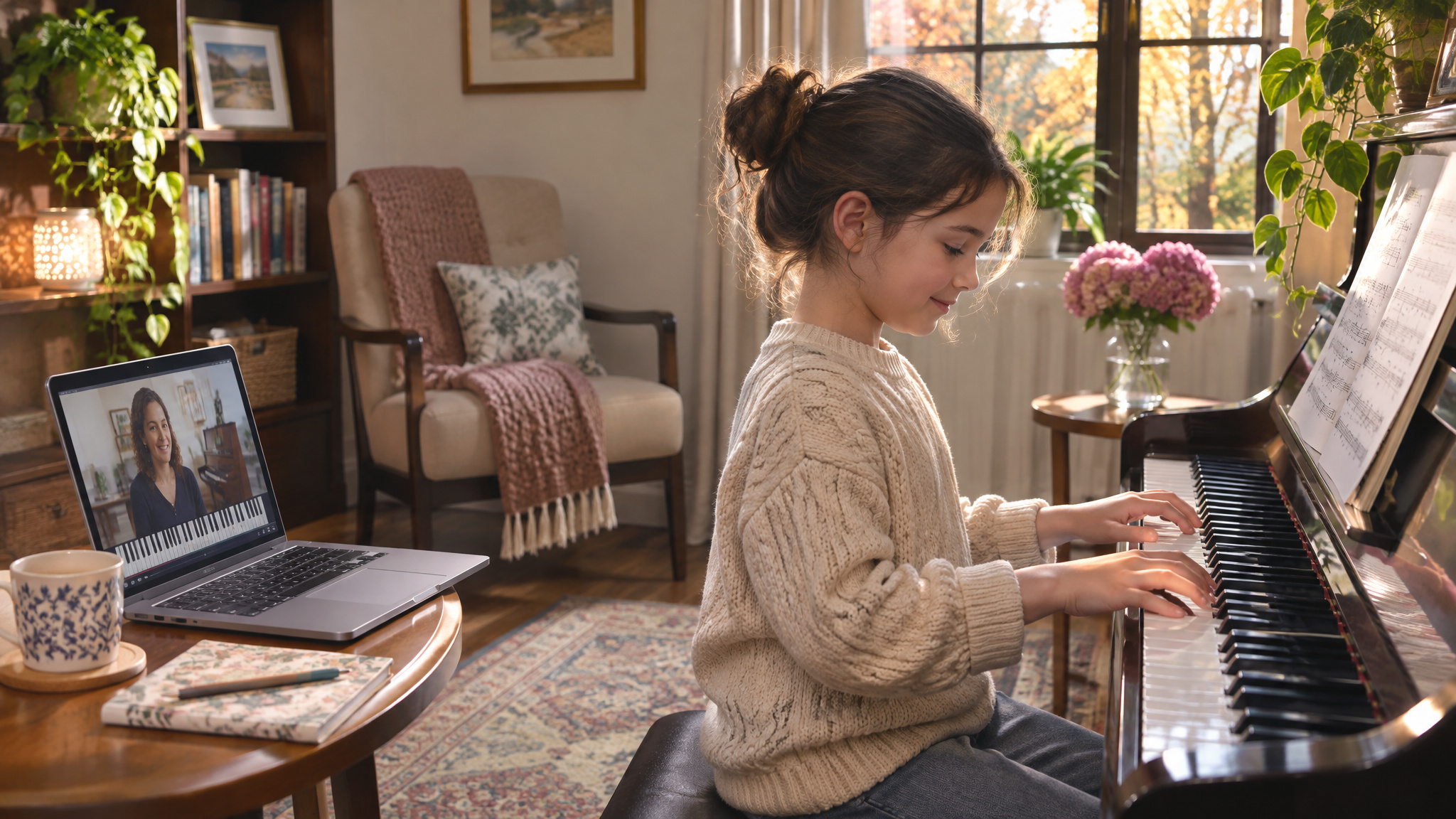
Lessons take a multi-sensory path: children start by playing by ear, then move into music theory, improvisation, and reading sheet music and rhythms through stories and games. The handoff to independence happens early. If a parent sits through the first few lessons alongside the child to get the routine set, kids can usually handle their lessons and practice on their own after that, using a Teacher Studio account during the week to rewatch repertoire and theory videos or use extra worksheets and learning games.
Math-U-See: a short video, then hands-on practice
Math-U-See fits a low-stimulation homeschool because the video portion is short, calm, and plain. Founder Mr. Demme teaches in an old-school style with a whiteboard, a marker, and physical math manipulatives, with zero flashy distractions.
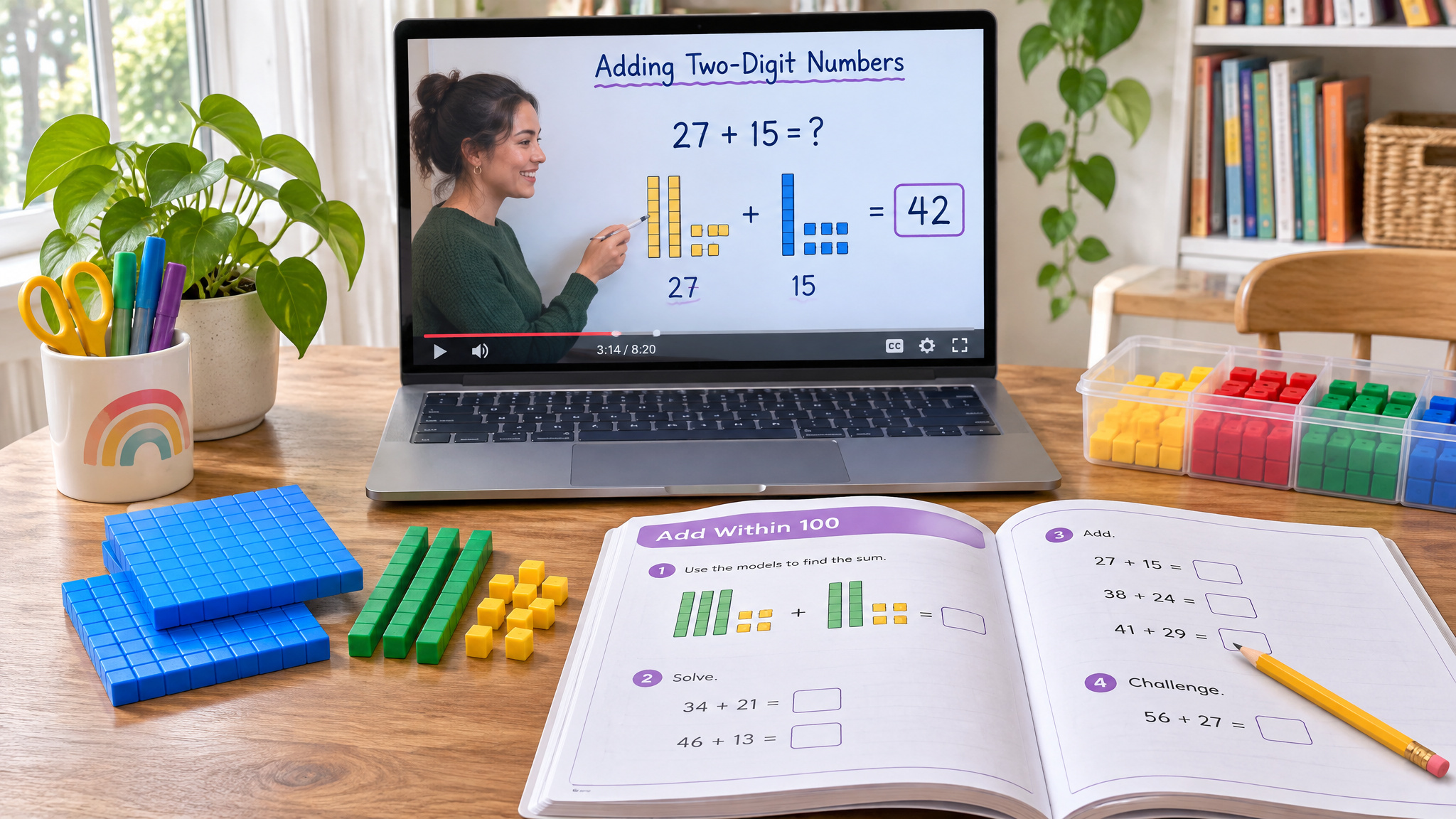
Most videos run 5 to 20 minutes, and kids only need to watch about one a week. The rest of the week happens off-screen with physical blocks and workbooks, so the computer introduces the concept and then gets out of the way.
Documentaries that reinforce what you already study
Documentaries earn their keep in a homeschool when they do one of two jobs: back up a subject you’re already reading about, or chase down a child’s specific curiosity. Used as a low-stimulating supplement rather than a replacement for books and time together, biographies and animal documentaries are reliable favorites that spark good conversations afterward without feeling like filler.
Film adaptations: read the book, then compare the movie
Pairing books with their film adaptations turns a regular movie night into a purposeful literature lesson. The order matters: read the chapter book together first, watch the movie after you finish, and talk through what changed and why.
For that read-then-watch routine, four tried-and-true picks include Charlotte’s Web, Anne of Green Gables, The Chronicles of Narnia, and Mary Poppins. Kids love spotting what the movie left out, and it naturally builds comprehension without a worksheet in sight.
YouTube how-to tutorials and ArtforKidsHub
YouTube works best for homeschoolers when you measure a video by what gets made off-screen right after it ends. Step-by-step tutorials let computer-loving kids learn how to cook, build, make, or draw at their own pace, with ArtforKidsHub standing out as a go-to channel for clear how-to-draw lessons.
Outschool live classes, with discretion
Outschool classes are worth considering for homeschoolers when you want a real, live teacher for a skill you don’t want to teach yourself, as long as you vet each class individually. The platform runs thousands of small-format live classes across academics and enrichment, including beginner drawing, crocheting, sewing, clay sculpting, Spanish, writing, math, reading, and coding, along with teachers experienced in working with neurodivergent learners who have ADHD, autism spectrum disorder, dyslexia, dyscalculia, dysgraphia, anxiety, or speech and language impairments.
That same parent who uses the two-criteria filter puts her son in a beginner drawing course with a live art teacher on Outschool, yet she explicitly notes she doesn’t condone every class on the site and urges parents to use discretion when picking a teacher. If you do want to try a single class, a $20-off-first-class discount (code NEWTERM20, additional terms apply) is available through her blog’s affiliate link.
Seek by iNaturalist: a field guide in your pocket
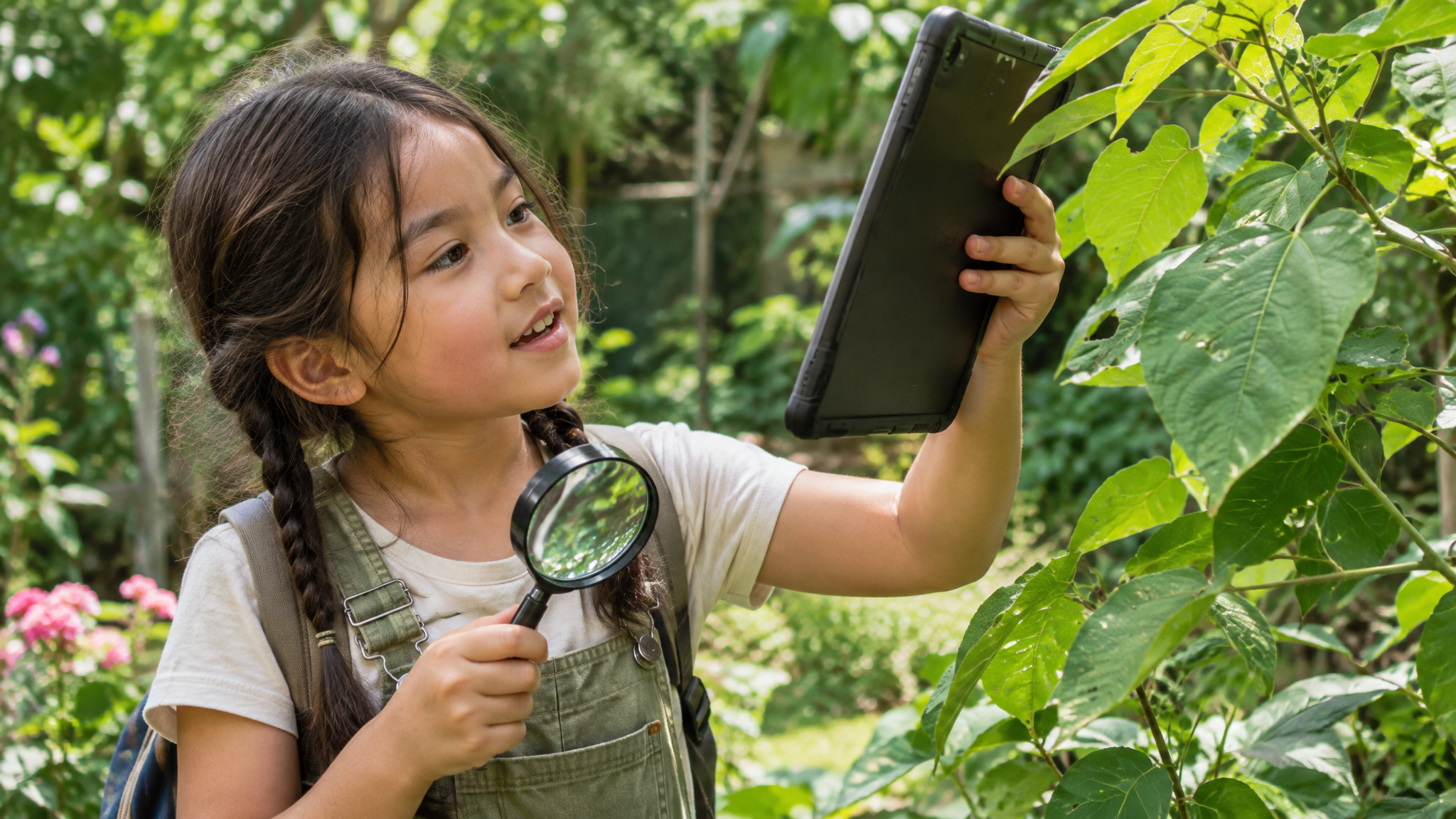
Seek by iNaturalist is a free app that turns screen curiosity into outdoor exploration. Point a phone or tablet camera at a bug, leaf, or plant, and it identifies the find fairly accurately while saving discoveries by location so kids can look them up again later.
Audiobooks and audiodramas: the low-stimulation default
Low-stimulation audio and screen activities are the easiest yes when you want to feed a curious mind without adding visual overload. Audio-only listening lets children keep their hands busy crocheting, working puzzles, or drawing while their brains stay engaged in a story, removing the bright-screen problem altogether.
Here are the main free and low-cost audio options that fit easily into a homeschool day:
- Free library-system audiobooks through Hoopla and Libby
- Public-domain classics read aloud on Librivox
- Audiodramas streamed on Spotify
- Hands-busy pairings like crocheting, sewing, clay sculpting, puzzles, or drawing while listening
Educational podcasts for the car
Educational podcasts fit right into the drive to errands, sports, or co-op with zero extra schedule friction. Listening in the car lets kids absorb stories, character lessons, science, and history without adding a single minute of formal screen time to your day at home.
Laptop or desktop for homeschooling? Supervision decides
Three of four homeschool guides favor a laptop over a desktop, and among eight posters who shared what their kids actually use for schoolwork, five use a Chromebook and three use a laptop. A laptop wins when supervision is the main constraint; a desktop only makes sense if you need more computing power per dollar in one fixed, monitored spot.
Why the laptop wins for supervision
A desktop tethers your child to one desk or corner, which means they’re unsupervised the moment you walk into the kitchen to switch the laundry. In Practical Homeschooling issue #41 from 2001, Mary Pride pointed out that stationary desktops also make slacking easy, right down to built-in games like Solitaire and Minesweeper.
Keep Nintendo-style games off the homeschool computer altogether, leaving them console-only, and use a laptop that moves where you are. Kids can work near siblings at the table, share one machine between them, and let the parent keep physical control of the internet connection by holding onto the phone wire or modem. If a rule gets broken, you can also pick up the laptop and store it away as an enforceable consequence. Even as an older 2001 perspective, that physical-supervision logic still holds up better than trusting a child alone in a back room.
The age-staged access policy
That same 2001 Practical Homeschooling framework laid out a simple age-staged computer policy that still gives parents a useful boundary map.
- Elementary and preteen years: Stick to software only, with no online courses or online friends, because online stalkers, inappropriate chat language, and pornography can be one accidental click away.
- Young teens: Start teaching online safety while keeping firm guardrails, since the internet is still what that guide called “the original black hole of time.”
- High school: Open up online academies for specialized subjects parents can’t easily teach at home, such as AP courses and Latin.
One blanket rule from that policy stays simple at every age: keep Nintendo-style games on a dedicated console only, never on the homeschool computer. If you’re still using physical discs or older software collections, storing them in CD-ROM wallets inside the laptop case and labeling them with a gel pen (since regular pens and stickers don’t hold) keeps them from getting scratched or lost.
Software-only years for elementary kids
If you’re wondering how much you need on a computer for younger grades, collections like Elementary Edge or Switched-On Schoolhouse were built to pack a lot of lessons into one place without constant internet access. Whether educational software plus traditional tools cover all elementary learning needs splits: they can easily supply all needs at this age, yet technology is supplemental, not a replacement for books.
How much screen time should a homeschooled child have?
There is no single daily screen-time number for homeschoolers; formal at-home schooling guidance caps recreational screens tightly by age, while low-stimulation households often leave audio uncapped and focus on keeping visual screens calm and brief.
Guidance from HP Tech Takes breaks down formal at-home academic workloads and screen limits like this:
- Preschool and kindergarten: No more than 1 hour a day of play-based academics, with screens capped at 1 hour a day of quality programming.
- Elementary: About 2 to 2.5 hours a day of academic work, with non-school screens capped at 2 hours a day, supervised, for ages 6 and up.
- Middle school: About 3 to 4 hours a day, mostly independent, using an assignment log to track due dates.
- High school: Up to 6 hours a day of independent, documented work.
At-home lessons almost always finish faster than parents expect because you’re teaching one or two kids instead of a classroom of 32. When a child finishes early, don’t hand them busywork just to fill a clock, which only discourages diligence. Offer meaningful work instead, or ask a teacher to adjust the load if it’s running too heavy.
Distance learning and homeschooling are not the same thing
Parents who watched friends juggle school closures during the COVID-19 pandemic sometimes mix up crisis distance learning with true homeschooling, and the two run on different rules.
Who holds authority: the district or you
In distance learning, often called “public school at home,” the school district provides the devices, resources, and attendance or curriculum rules while the offsite teacher keeps authority. Students in that setup need to self-advocate directly to their teachers. In parent-directed homeschooling, you choose, coordinate, and buy the materials yourself, which means you set the pace and the tech rules.
Deschooling: the transition nobody warns you about
Expect some early frustration and confusion when you first bring school home, even with the exact same books and computer tools, it never feels like a classroom. That rough adjustment period is called deschooling.
When a family hits an abrupt transition or closure, it helps to start with small goals and ramp up over weeks while skipping non-essential extras. Kids grieving a lost routine often take that anger out on their parents, and sibling conflict flares when everyone is cooped up, so balancing shared bonding with time alone matters. If parents are working from home at the same time, alternating shifts, enlisting other caregivers, and setting clear work hours keeps everyone steadier.
Setting up the at-home learning environment
A workable home computer setup doesn’t require a dedicated tech lab, just a smart match between your child’s age, your internet bandwidth, and a few simple habits.
Workspace by age
Younger kids need a central, monitored workspace away from bedrooms and toy piles. The dining room table makes a solid hub for computer homeschooling, with nearby floor space for coloring, sorting, and puzzles. Older kids need a quiet spot away from louder siblings, a basement corner, a loft, or even the back porch.
Tools, internet speeds, and bandwidth
Most modern laptops, tablets, phones, and all-in-one computers already have built-in webcams and microphones, and a simple headset cuts background noise. An all-in-one printer handles printing and scanning, though a smartphone can stand in for scanning. If your teen is doing photo or video editing, an Intel 8th Generation i5 or i7 processor is a solid benchmark.
For internet speed, aim for 3 MB/s or faster for live video classes, while under 1 MB/s works fine for pre-recorded lessons. If your WiFi bogs down with multiple people online, stagger live video times so only one person streams at once, ask for pre-recorded options when available, power off non-educational phones, tablets, and consoles during school hours, close background tabs, lower video resolution, and plug the learning laptop into Ethernet to give it priority.
Video class etiquette and screen-based connection
Before your child’s first live online class, have a parent or older sibling on standby for the first few sessions to head off panicked troubleshooting. Teach the camera basics early, too: get dressed, log in a few minutes early, keep pets out of the room, stay muted until called on, and skip food, drinks, and gum.
Video chat isn’t only for formal classes, either. You can FaceTime grandparents to read picture books to little ones, and have older kids read aloud to younger siblings so it counts as school time for both.
Choosing online courses: match the format to the child
Online courses work well for homeschooled high schoolers when the format matches the subject and your teen’s temperament, from real-time discussion in ISLAS’s text-chat classes or Escondido Tutorial Service’s audio-based Great Books Tutorial to asynchronous writing and discussion in PA Homeschoolers AP courses. A good online class brings three real advantages: a live teacher who knows the subject, friendships and school spirit with classmates, and pre-selected, vetted web links. Start small so you don’t overenroll, and watch for slower feedback in options like APEX Learning, where AP Calculus assignments sometimes went ungraded for two weeks.
Student consultants Joseph and Sarah Pride, two National Merit Finalists who earned full-tuition scholarships and logged eight years of online classes across four academies around 2001, saw firsthand how different formats succeeded or stalled.
Real-time discussion classes
Live classes build energy, though the tech setup shapes how much gets covered. ISLAS, a generically Christian academy (with a Catholic sister school, Regina Coeli Academy), ran real-time text-only chat classes on older computers with teacher pings and exclamation-point answer queues, plus an in-person graduation Sarah attended in St. Louis in 2000; its main drawback was that uneven typing speeds slowed down class discussion. Escondido Tutorial Service, founded by Fritz Hinrichs, took a different route with its six-year Great Books Tutorial (Sarah took one year and Joseph took two) using live audio discussion rather than lectures, though Mac compatibility quirks meant Sarah had to type while listening.
Asynchronous written courses
PA Homeschoolers, the first online academy known to offer AP courses to homeschoolers, posted assignments with set due dates and relied heavily on written discussion via email and message boards. That format worked especially well for humanities APs that need thoughtful back-and-forth. Sarah took five AP courses there over four years, including AP Economics with Howard Richman drilling exact exam topics.
Automated self-paced courses
APEX Learning, founded by Paul Allen, used video lectures, CD-ROMs, automatic grading, and 3 to 8 day topic units without separate textbooks. Joseph found that automated pace worked well for science and math, while Sarah found the lack of discussion isolating in a mostly deserted student lounge. Teacher responsiveness varied sharply, too: Sarah’s AP Calculus assignments sometimes sat ungraded for two weeks with unhelpful email replies, whereas AP Physics teacher Mr. Robinson responded quickly.
Start small
Sarah’s biggest warning applies just as much today as it did then: parents often overenroll homeschooled teens in online classes, leaving them overwhelmed and behind. Start with one or two courses, see how the format fits, and build from there.
What research says about screens vs. books
Research shows the medium itself is not the deciding factor in how well children learn; content, physical activity, and basic access to learning tools matter far more.
The medium is not the deciding variable
A Honduras elementary-school study that swapped laptops for textbooks found no difference in learning outcomes either way, and there is no scientific consensus favoring paper books over digital devices. Learning and memory physically rewire the plastic childhood brain, and richer early environments improve lifelong learning, just as childhood bilingualism speeds up learning a third language as an adult while sensory deprivation shrinks brain size.
Digital tools can boost literacy, numeracy, manual dexterity, and visuospatial working memory in structured learning settings, and options like virtual-reality lessons in Kenya or AI tools like ChatGPT show how motivating digital tools can be. Still, some studies point to attention harms and passive scrolling, and health downsides from overuse may come from prolonged sitting rather than the screen itself, which is why outdoor activity remains closely tied to healthy development and academic performance.
Handwriting and keyboarding do different jobs
Writing by hand and typing on a keyboard aren’t interchangeable, and knowing the difference helps you assign each one to the right job. Handwriting engages the brain more actively and commits more material to memory, so keep memory-heavy notes and spelling practice on paper. Keyboarding, on the other hand, motivates reluctant writers, especially boys who dislike handwriting, and encourages them to write longer pieces.
Access, not medium, drives outcomes
Poverty and access drive the biggest gaps in student learning, not the choice between paper and screens. During COVID-19 closures, a UK survey showed one-third of students in disadvantaged areas lacked adequate home learning tools and saw declining performance, echoing worldwide drops in high-school outcomes tied to socioeconomic factors. Worry over new media isn’t new, either: Socrates argued that writing things down would make people forgetful, yet his ideas survive today only because someone wrote them down.
The parent’s screen: what your child sees you model
Children mirror the screen habits they watch their parents model every day. Elaine Roth, who writes at Scary Mommy, shared a sharp reminder from quarantine when she was working on her laptop with three documents and about 18 tabs open while her two kids played alone. Her kids eventually told her she loved her computer more than them and was always working instead of playing with them.
Roth realized she had been using her writer hat as a guilt-free break from her mom hat by taking on extra freelance deadlines, and concluded that being honest with kids about needing human downtime to zone out and simply be serves everyone better than hiding behind a screen. In my own house, keeping an eye on what my son views goes hand in hand with watching my own screen habits when we’re supposed to be together.
Channeling a computer-loving child, not containing them
Building a purposeful path around a child’s love of computers works far better than trying to police their curiosity away. Used well, educational software earns its keep by saving flashcard-drill time, showing music, art, and 3-D animations print can’t match, giving instant interactive feedback, building research skills, and motivating kids to spend more time on assignments.
The path is straightforward: start with short weekly typing and narrations, add calm self-paced music and math videos, use how-to tutorials and nature apps to spark off-screen projects, vet live creative classes carefully, and stage online courses as maturity grows. Specific coding curricula weren’t tested in these household examples, so if your child wants to jump into programming, run any coding site or app through the same low-stimulating and supplemental filter first. With the AI revolution underway, I’m happy to let my computer-loving son learn and explore while keeping a steady eye on what he views.
Frequently Asked Questions
What are intentional ways to use technology in a homeschool without it becoming a crutch?
Start by treating screens as a strict supplement to real books and hands-on work, never the main event. In my own homeschool, a small weekly rhythm works best: one short typing lesson, a brief math video followed by physical blocks, and self-paced piano practice that runs without me hovering. Keep laptops in a shared space like the dining table so you can easily keep an eye on what your kids are doing, and lean on audio-only stories when you want screen-free engagement.
How can I tell if an educational website or app is too over-stimulating for my child?
Watch out for layered sound effects, neon color palettes, rapid animations, and flashy reward loops that look suspiciously like an arcade game. Those bells and whistles are designed to glue kids to the screen, not help lessons actually stick. A genuinely low-stimulating tool either sticks to audio-only listening or keeps its visuals calm, plain, and free of constant noise.
What are low-stimulation screen activities for homeschooled kids who love computers?
Calm, structured options include Keyboarding Without Tears for weekly typing, Math-U-See’s plain whiteboard videos, and Hoffman Academy for self-paced piano. You can also use documentaries that tie into what you’re already reading, pair chapter books with their movie adaptations, or pull up step-by-step YouTube tutorials like ArtforKidsHub that immediately send kids off-screen to draw or build. For outdoor curiosity, the Seek by iNaturalist app turns a quick camera scan of a bug or leaf into a digital field guide.
Is Keyboarding Without Tears a good typing program for homeschoolers?
Yes, especially for elementary students who need steady keyboard skills without turning typing into a daily screen battle. Doing just one brief lesson a week over a couple of years builds real confidence and doesn’t crowd out essential handwriting practice. Better yet, the lessons weave in history and science so typing quickly carries over into practical work like narrations, creative writing, and letters to family.
Can kids learn piano online with Hoffman Academy, and does it work independently?
They can, and its early handoff to independence is one of its biggest perks. The self-paced lessons skip the frantic gimmicks of typical kid apps and instead use stories, games, and a multi-sensory sequence that moves from playing by ear to reading sheet music and theory. Once you sit beside your child for the first few sessions to lock in the routine, they can usually run lessons and weekly practice on their own through a Teacher Studio account.
Are Outschool classes worth it for homeschooled kids, and how do I choose safely?
Outschool is a solid option when you want a live teacher for an academic or enrichment skill—from beginner drawing and sewing to Spanish, coding, or classes tailored for neurodivergent learners—that you’d rather not teach yourself. Because quality varies across thousands of small-format listings, the key is vetting each class and instructor individually instead of trusting the whole platform blindly. Start with a single course that fits your family’s standards before committing to more.
How much screen time should a homeschooled child have each day?
There isn’t one magic daily quota, since families succeed everywhere from zero screens to regular computer use. If you want formal guardrails, HP Tech Takes recommends capping non-school screens at 1 hour of quality programming for preschoolers and 2 supervised hours for ages 6 and up, alongside 1 to 2.5 hours of daily academics in those early grades and 3 to 6 hours of independent work by middle and high school. In low-stimulation households, parents often leave audio-only listening uncapped while keeping visual screen sessions brief and calm.
At what age is it appropriate for a child to have a computer?
Rather than a single age milestone, it works better to stage computer access as your child matures. Elementary and preteen kids do best sharing a family laptop in a central spot like the dining room table, sticking to offline software without open internet browsing or online friends. As they hit their early teens, you can introduce online safety with firm guardrails, then open up online academies for specialized high school subjects like AP courses or Latin.
How to homeschool your child while working?
Working from home while homeschooling takes deliberate scheduling—like trading off parent shifts, bringing in other caregivers, and setting clear work hours—so nobody feels constantly pulled in two directions. It also pays to be honest with your kids when you need real downtime instead of hiding behind a laptop with 18 tabs open, because children quickly notice when a screen is getting more attention than they are. Once kids are older, independent tools like assignment logs and self-paced lessons can also free up blocks of your workday.
How do computers affect education?
Research shows the screen itself isn’t what makes or breaks learning—content, physical activity, and basic access to tools matter far more, and a Honduras elementary study swapping laptops for textbooks found no difference in outcomes. Structured digital tools can sharpen literacy, numeracy, manual dexterity, and visuospatial working memory, and typing often helps reluctant writers produce longer work, while handwriting still wins for memory-heavy tasks like spelling. The real risks come from passive scrolling and sitting still for too long, which is why balancing tech with outdoor movement is essential.